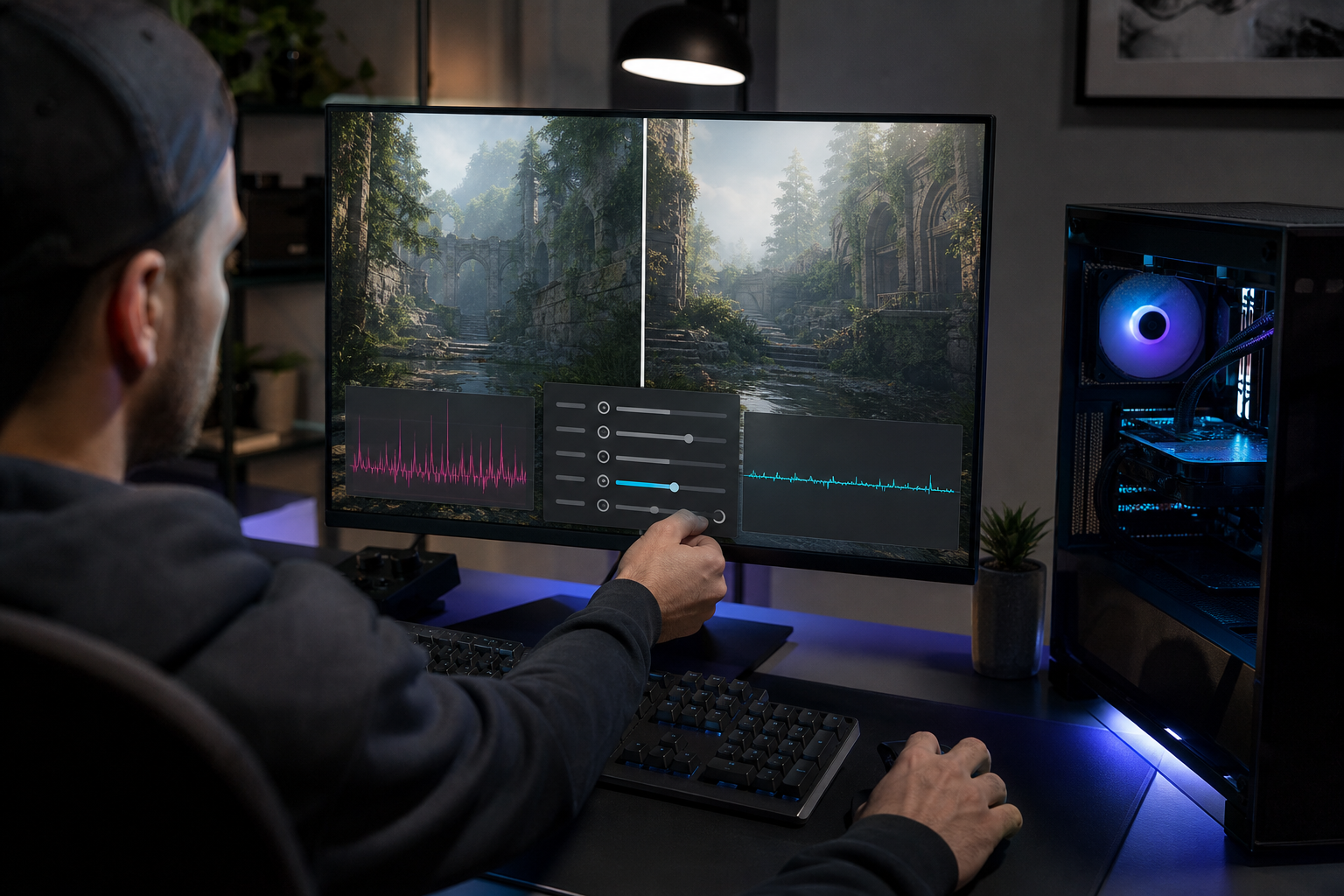
A game’s “Low,” “Medium,” and “High” presets are convenient, but they can change many settings at once. That makes it difficult to know which option is actually slowing the system down. A more effective approach is to measure performance, identify the limiting component, and adjust the most expensive settings first.
Begin with a repeatable test
Choose a demanding area that can be revisited, or use the game’s built-in benchmark when available. Watch the same scene after each change. Average frame rate is useful, but consistent frame delivery matters too; a high average can still feel rough when individual frames arrive unevenly.
Change one setting at a time. Otherwise, an improvement may be attributed to the wrong option.
Resolution usually has the largest impact
Higher resolution asks the graphics processor to shade more pixels. Reducing the output resolution can provide a large performance improvement, but it also makes the image softer.
If the game supports a reputable upscaling option, try its quality mode before lowering the display resolution dramatically. Upscaling renders internally at a lower resolution and reconstructs the final image. Results vary by game, so compare fine details and motion rather than relying only on the setting name.
Shadows, reflections, and volumetric effects
Shadow quality can affect resolution, distance, and the number of objects that cast shadows. Dropping it one level often saves performance without removing shadows entirely.
Reflections can also be expensive, especially when they update in real time. Volumetric fog, clouds, and lighting may place a heavy load on the GPU. These settings are good candidates for a one-step reduction when busy outdoor scenes or weather effects cause slowdowns.
Ray tracing needs a separate decision
Ray-traced lighting and reflections can improve realism, but the performance cost may be substantial. If a game is not reaching the desired smoothness, disable ray tracing before reducing every conventional setting. Players who keep it enabled may need upscaling or frame-generation features, with the understanding that those technologies have their own image-quality and latency tradeoffs.
CPU-heavy settings
Crowd density, simulation detail, view distance, and object count can strain the processor. Lowering resolution will not solve a CPU limit. If performance drops in crowded cities but the GPU is not fully occupied, test these settings instead.
Keep textures within available memory
Texture quality often affects video-memory use more than raw frame rate. When the setting exceeds available memory, the game may stutter while moving data. Choose the highest level that remains stable rather than automatically selecting the maximum.
Start with resolution or upscaling, then test shadows, reflections, volumetric effects, and ray tracing. Adjust CPU-heavy options only when the scenario indicates a processor limit. A measured approach usually preserves more visual quality than lowering the entire preset.
Source: nvidia.com