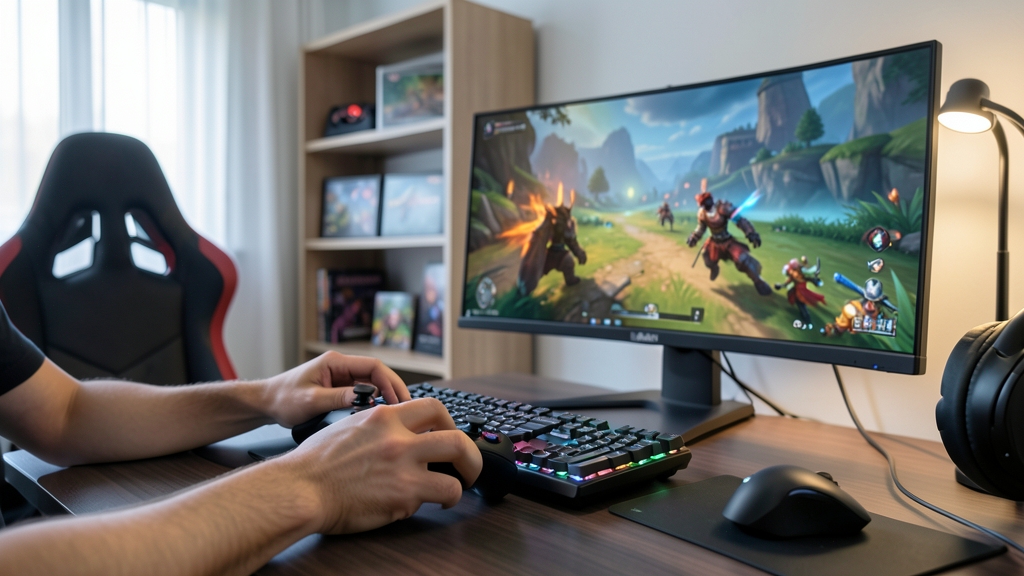
Gaming controllers are an essential part of the gaming experience, and customizing their settings can significantly enhance gameplay and comfort. Many gamers overlook the potential of tailored controller settings, sticking to default configurations that may not suit their playing style. In this article, we will explore the benefits of customized controller settings and provide a step-by-step guide on how to optimize your controller for a better gaming experience.
Understanding Controller Settings
Most gaming controllers come with a range of adjustable settings, including button mapping, sensitivity, and vibration. Understanding these settings and how they impact gameplay is crucial for creating a personalized configuration. For example, adjusting the sensitivity of the analog sticks can improve aiming accuracy in first-person shooter games, while custom button mapping can streamline gameplay in complex games with multiple actions.
Customizing Button Mapping
Button mapping allows gamers to reassign buttons to suit their preferred playing style. This can be particularly useful for games with complex control schemes or for gamers with disabilities. To customize button mapping, access the controller settings on your gaming platform, select the game or global settings, and remap the buttons to your preferred configuration. For instance, you can swap the jump and sprint buttons in a platformer game to improve navigation.
Adjusting Sensitivity and Vibration
Sensitivity settings control how responsive the controller is to input, while vibration settings enhance the gaming experience with haptic feedback. Adjusting these settings can significantly impact gameplay, especially in games that require precise aiming or immersive feedback. To adjust sensitivity, access the controller settings and adjust the slider to your preferred level. For vibration, enable or disable it depending on your preference and the game's requirements.
Saving and Switching Profiles
Most gaming platforms allow gamers to save and switch between multiple controller profiles, making it easy to switch between different games or playing styles. To save a profile, access the controller settings, configure your preferred settings, and save the profile with a descriptive name. You can then switch between profiles depending on the game or your playing style, ensuring an optimal gaming experience.
Practical recommendation
Customizing your gaming controller settings can significantly enhance your gaming experience, improving performance, comfort, and overall enjoyment. By understanding and adjusting controller settings, such as button mapping, sensitivity, and vibration, you can create a personalized configuration that suits your playing style and preferences. Take the time to explore your controller's settings and experiment with different configurations to discover the optimal setup for your gaming needs.
Source: support.xbox.com